
Philips 241V8LB
4.6Editor score
Full HD 1080p resolution
VA panel with high contrast
Flicker-free eye comfort tech
Finding the right display for your MacBook Pro can significantly enhance your productivity and creative output. Modern monitors offer high resolution, accurate colors, and seamless connectivity options that complement Apple laptops perfectly.
We analyzed ten top-rated models based on display quality, port selection, and ergonomics. Each pick balances performance with value to help you find the ideal companion for your daily tasks and media consumption.
Every recommendation includes detailed specs, pros, cons, and real-world usage insights. Please note that pricing and availability change frequently, so verify current deals before making your final purchase decision online.
4.6Editor score

4.5Editor score
5.0Editor score
As an Amazon Associate we earn from qualifying purchases.
This side-by-side comparison highlights key specifications across all ten selected monitors. We focus on resolution, refresh rates, color accuracy, and connectivity to help you quickly identify the best fit for your setup.



The Dell S2725QC stands out as a versatile 4K monitor that balances performance and comfort. With a 120Hz refresh rate and solid 4K resolution, it delivers sharp visuals suitable for work and media.
We may earn a commission when you buy through this link, at no additional cost to you.
Its ComfortView Plus feature reduces harmful blue light without compromising color accuracy, making long sessions easier on the eyes. The 65W USB-C connection simplifies setup by charging your MacBook while displaying content.
While HDR capabilities are limited compared to premium models, the color fidelity remains strong across sRGB content. The re-engineered speakers add convenience though external audio is still preferred for high fidelity needs.
This monitor is ideal for users needing a high-refresh 4K display at a reasonable price. It offers a smooth, clutter-free experience perfect for daily productivity and casual content consumption.
The 120Hz refresh rate ensures fluid motion during scrolling and video playback, reducing eye strain during extended work sessions.
ComfortView Plus technology filters out harmful blue light emissions, helping maintain visual comfort throughout long days of use.
We may earn a commission when you buy through this link, at no additional cost to you.
The BenQ MA270UP is specifically engineered to pair with MacBook Pro and Air models for seamless operation. It delivers vibrant P3 color coverage that matches Apple displays, ensuring consistency across devices.
We may earn a commission when you buy through this link, at no additional cost to you.
Mac Color Match calibration ensures colors look exactly as intended, eliminating guesswork for creative professionals. Unique features include direct volume and brightness controls via your Mac keyboard, streamlining daily adjustments.
Dual USB-C ports provide flexibility, delivering 90W power to your laptop while offering extra bandwidth for peripherals. While pricey, the specialized integration makes it worth the investment for dedicated Mac workflows.
Buyers seeking a monitor that mirrors the Mac experience will appreciate this model. It offers reliable performance, accurate colors, and hardware-level compatibility that general monitors simply cannot match.
Factory tuning ensures P3 colors align perfectly with Apple devices, so designs look consistent on the screen and MacBook.
Adjust brightness and volume directly from your MacBook keyboard, removing the need for on-screen menus or physical buttons.
We may earn a commission when you buy through this link, at no additional cost to you.
The LG 27UP850K-W offers exceptional value for users seeking a high-quality 4K monitor without breaking the bank. Its IPS panel delivers vibrant colors and wide viewing angles suitable for creative tasks.
We may earn a commission when you buy through this link, at no additional cost to you.
Support for HDR400 enhances dynamic range slightly, though it is not full HDR. The USB-C port supplies 90W power, enough to charge most MacBooks while transmitting video and data over one cable.
Built-in MaxxAudio speakers provide decent sound quality for meetings and media without needing external speakers. While ergonomics are simple, the display quality and connectivity options make it a strong contender.
Ideal for general users needing reliable 4K clarity, this monitor balances features and affordability. It is a smart choice for home offices or creative setups prioritizing color fidelity over gaming performance.
With up to 95% DCI-P3 coverage, this monitor produces vivid, true-to-life colors essential for photo editing and media creation.
USB-C with 90W delivery simplifies cabling while HDMI and DisplayPort offer flexible options for secondary devices or consoles.
We may earn a commission when you buy through this link, at no additional cost to you.
The Dell S2425HSM focuses on smooth motion and ergonomics rather than high resolution. Its 144Hz refresh rate and 1ms response time ensure sharp visuals during scrolling or light gaming on a 1080p panel.
We may earn a commission when you buy through this link, at no additional cost to you.
ComfortView technology reduces blue light emissions effectively without shifting colors too much. The stand offers full tilt, pivot, and height adjustments for optimal positioning throughout your workday.
Limited connectivity options like HDMI mean users might need dongles for USB-C devices. However, the excellent build quality and smooth motion make it suitable for office work and media watching.
Best suited for users prioritizing refresh rate and ergonomics over pixel density, this model provides a clean workspace solution. It is reliable, comfortable, and designed for long viewing sessions.
The 144Hz refresh rate paired with a 1ms response time minimizes motion blur, keeping fast content clear and responsive.
Full adjustability allows you to customize the monitor position, reducing neck strain and improving posture during long work hours.
We may earn a commission when you buy through this link, at no additional cost to you.
The Philips 241V8LB offers excellent value for budget-conscious buyers needing a reliable secondary display. Its VA panel provides deeper blacks and better contrast than typical IPS screens, enhancing media viewing.
We may earn a commission when you buy through this link, at no additional cost to you.
Flicker-free technology and EasyRead mode reduce eye strain during long reading sessions. The borderless bezel design makes it ideal for multi-monitor setups where screen space is at a premium.
While response times are slower than gaming panels, the 100Hz refresh rate ensures smooth scrolling. It is best suited for office work rather than competitive gaming due to limited input speed.
For students or remote workers needing a dependable, low-cost option, this monitor fits the bill. It delivers crisp visuals and eye comfort features without demanding a large investment or complex setup.
The VA panel produces bright whites and deep blacks for vivid images, providing better contrast ratios than standard office displays.
Minimal bezels allow for multi-monitor setups that maximize workspace while maintaining a sleek, professional appearance on your desk.
We may earn a commission when you buy through this link, at no additional cost to you.
The LG 27US500-W combines sharp 4K visuals with a modern aesthetic. Its borderless frame and white finish give it a clean look that fits well in stylish home offices or studios.
We may earn a commission when you buy through this link, at no additional cost to you.
IPS technology ensures colors stay consistent across wide angles, essential for collaborative work. HDR10 support adds dynamic range to compatible content, though it is not the brightest on the market.
The Switch app simplifies layout adjustments via hotkeys, making multitasking easier. However, the lack of USB-C power means separate cables are needed for connecting laptops like MacBook Pro.
This monitor is ideal for users valuing design and resolution over port convenience. It delivers sharp visuals and eye comfort features, making it a solid choice for media and general work.
The borderless frame and wide viewing angles create an expansive canvas for media, keeping distractions minimal and focus sharp.
Onscreen Control and the Switch app let you split windows and adjust settings quickly without reaching for physical buttons or menus.
We may earn a commission when you buy through this link, at no additional cost to you.
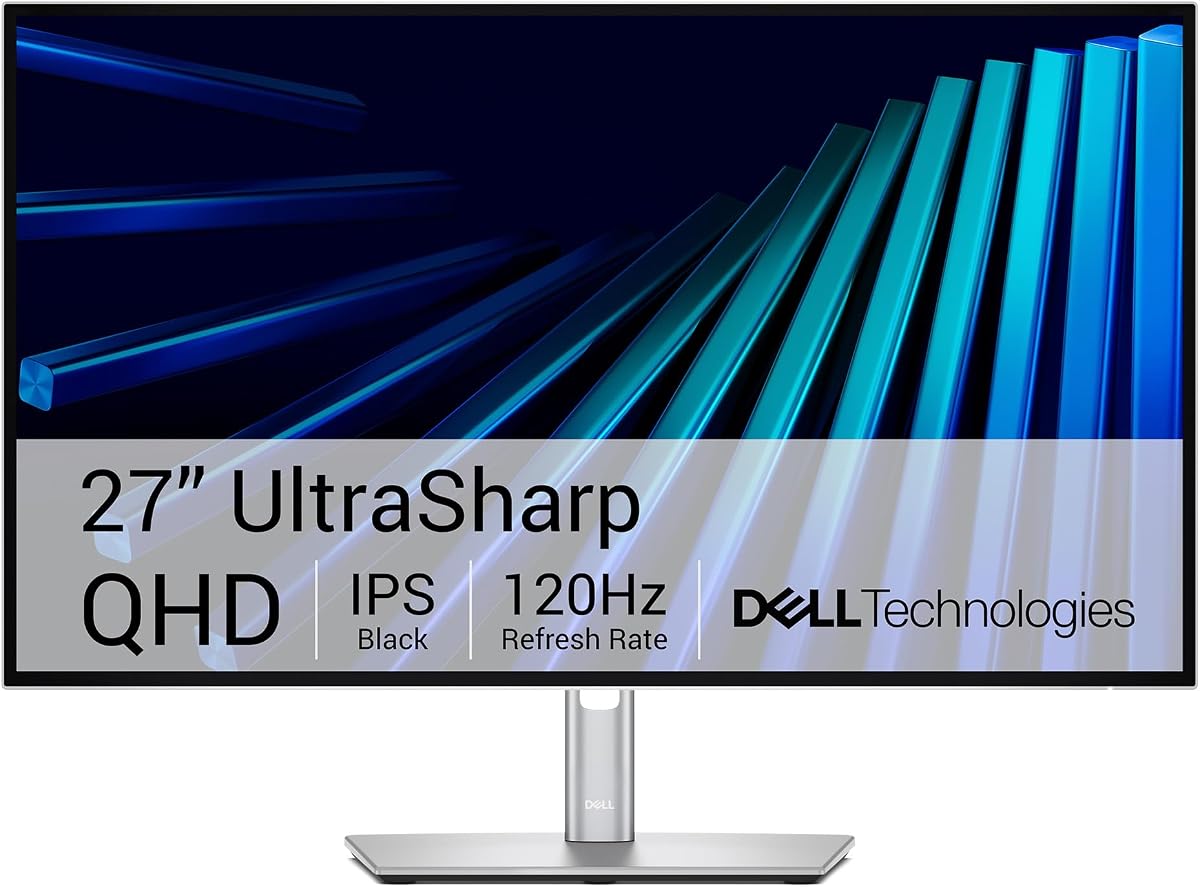
The Dell UltraSharp U2726DER is a professional-grade Thunderbolt hub monitor designed for high-end workflows. It offers factory-calibrated accuracy and 98% Display P3 coverage, ensuring colors are true from day one.
We may earn a commission when you buy through this link, at no additional cost to you.
Its Thunderbolt 4 hub simplifies connectivity, allowing for daisy-chaining, fast data, and laptop charging via one cable. The KVM switch enables control of two devices with a single keyboard and mouse seamlessly.
While expensive, this monitor delivers unmatched performance for designers and developers. The 120Hz refresh rate adds smoothness to QHD visuals, making it suitable for both creative work and productivity tasks.
Pros investing in premium tools need this monitor. It combines precision color, robust connectivity, and elegant design, serving as a central hub that enhances both workflow and desk aesthetics effectively.
Factory calibration and 98% P3 coverage ensure your designs match client expectations without manual tweaking or extra hardware.
Thunderbolt connectivity supports high bandwidth while the built-in KVM switch allows smooth switching between personal and work machines.
We may earn a commission when you buy through this link, at no additional cost to you.
The BenQ PD2706QN targets designers needing precise color consistency and Mac compatibility. Factory calibration ensures Delta E under 2, while ICCsync keeps profiles aligned across multiple devices seamlessly.
We may earn a commission when you buy through this link, at no additional cost to you.
Nano matte coating diffuses ambient light to reduce glare, maintaining color accuracy even in bright rooms. The 90W USB-C port charges your MacBook while delivering crisp visuals through a single cable.
Daisy chain support allows connecting multiple monitors without extra power bricks. Although it is QHD rather than 4K, the focus on uniformity and anti-glare properties suits professional design environments perfectly.
Designers looking for a color-accurate, ergonomic display will find this model compelling. It delivers stable visuals, reduced reflections, and reliable performance tailored for long design sessions in varied lighting.
The nano matte panel reduces harsh reflections and glare, ensuring clear visibility and color precision during detailed creative work.
Factory calibration and uniformity controls ensure consistent colors across the screen, avoiding banding or shifting during important projects.
We may earn a commission when you buy through this link, at no additional cost to you.
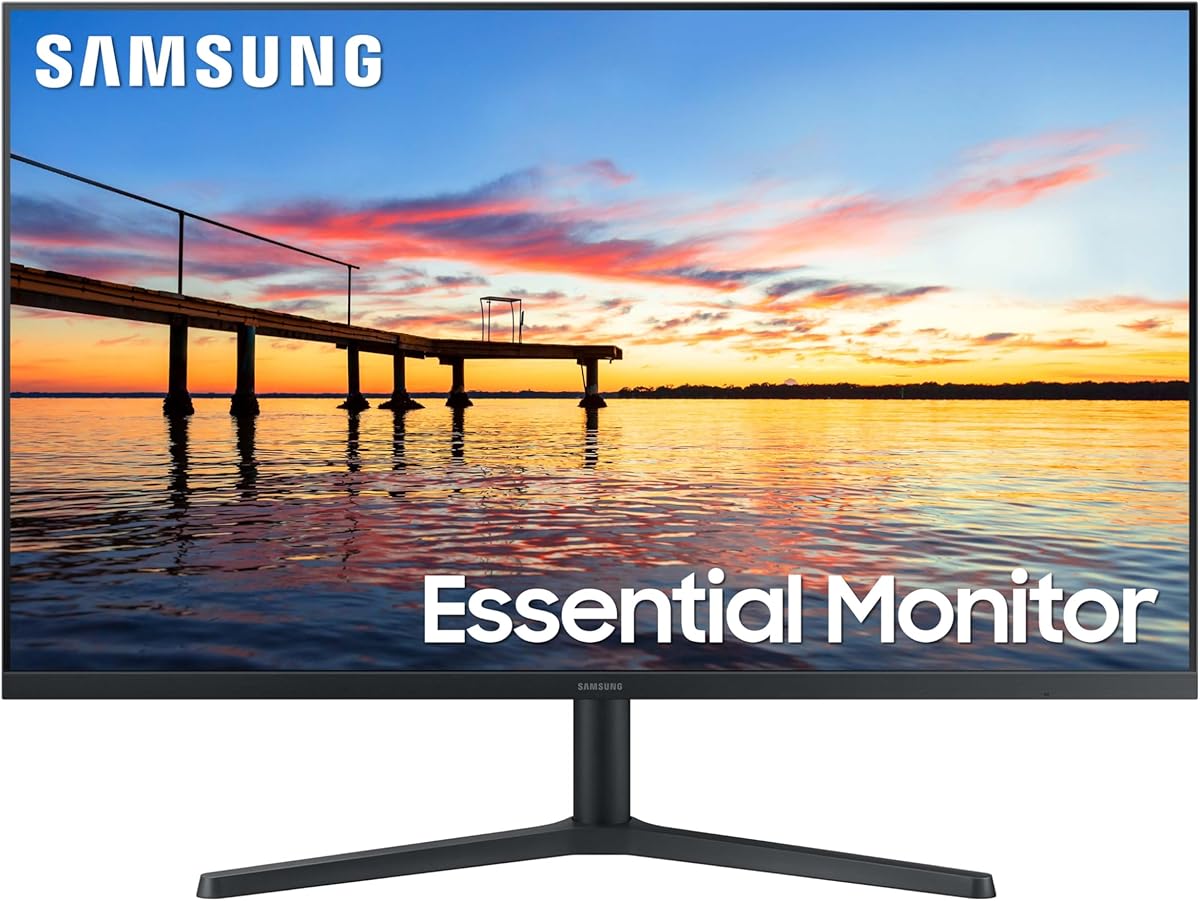
The Samsung 32-inch monitor offers a spacious screen for immersive media and multitasking. Its borderless bezel design provides a seamless viewing experience, making it ideal for home entertainment or large workspaces.
We may earn a commission when you buy through this link, at no additional cost to you.
FreeSync technology reduces screen tearing for smooth gaming and video playback. The Eye Saver Mode minimizes blue light, helping reduce fatigue during extended use without shifting colors too much.
While resolution is standard, the size adds significant screen real estate for open applications. The stand is basic, so VESA mounting might be needed for better positioning on larger desks.
Best for those needing extra screen space without complex features, this monitor delivers reliability. It is a cost-effective option for casual users, students, or anyone wanting a larger visual canvas.
The 32-inch display offers ample space for multitasking and media consumption, providing a cinematic feel for home entertainment.
AMD FreeSync synchronizes refresh rates to reduce tearing, ensuring fluid motion across games, videos, and general desktop usage.
We may earn a commission when you buy through this link, at no additional cost to you.
The LG 27U631A-B balances performance and affordability for general use. Its IPS panel delivers vivid colors and wide viewing angles, while the 100Hz refresh rate ensures smooth scrolling and motion.
We may earn a commission when you buy through this link, at no additional cost to you.
Reader Mode and Flicker Safe technologies reduce eye strain during long reading sessions. However, USB-C power is limited to 15W, so external chargers are needed for MacBook models requiring more power.
HDR10 support enhances dynamic range slightly, though it is best for media rather than professional work. The slim bezel design keeps the desk tidy and improves focus on the content being viewed.
Ideal for general users wanting a solid daily driver, this monitor provides reliable performance. It is a practical choice for home offices or study spaces where versatility and comfort are priorities.
Reader Mode and Flicker Safe features reduce blue light and screen flicker, helping prevent eye fatigue during long reading or writing tasks.
The 100Hz refresh rate ensures fluid motion for scrolling and video, providing a smoother experience than standard 60Hz office monitors.
We may earn a commission when you buy through this link, at no additional cost to you.
Selecting the right monitor for your MacBook Pro depends on balancing resolution, connectivity, and color accuracy. This guide outlines the key factors to consider before making your purchase.
Resolution defines the level of detail on your screen. For creative work and clarity, 4K resolution on a 27-inch display is ideal, offering sharp text and image quality. However, budget options often come in 1080p or QHD sizes, which still deliver smooth performance for general tasks.
Choose higher resolution if you edit photos or design, but smaller resolutions work fine for office tasks. Screen size affects comfort, with 27 inches being a sweet spot for most desks.
Color gamut coverage like sRGB and DCI-P3 determines how accurate colors appear. Professional workflows demand high coverage, ideally 95% or more of P3 for consistent output. Factory calibration ensures accuracy out of the box without extra tuning.
For media viewing, standard sRGB is sufficient, but designers should seek P3 coverage. Accurate colors ensure your designs match what clients or viewers will see on other screens.
USB-C is essential for MacBook users as it combines video, data, and power in one cable. Look for monitors delivering at least 65W or 90W power to charge your laptop effectively. HDMI and DisplayPort offer flexibility for connecting multiple devices or older systems.
Prioritize USB-C if you want a clean setup. Thunderbolt support adds speed for data but costs more. Ensure ports match your MacBook's needs to avoid dongles or adapters.
Refresh rate measures how often the screen updates, impacting motion smoothness. 60Hz is standard for office work, but 120Hz or 144Hz benefits scrolling and gaming. Response time affects ghosting; lower is better for fast action.
If you value smooth motion, choose high refresh rates. For static tasks, standard rates are fine. Balance speed with color and resolution needs to avoid overspending on unnecessary features.
Adjustable stands allowing height, tilt, and swivel improve posture and comfort. Borderless designs maximize screen space for multi-monitor setups. VESA mounting compatibility offers flexibility if you prefer custom arms or stands.
Look for adjustable stands to reduce strain during long hours. Comfort features like borderless bezels and slim designs also enhance aesthetics and desk organization significantly.
Features like flicker-free technology and low blue light modes help reduce eye strain during long sessions. These are especially helpful if you work late or in varied lighting conditions. ComfortView or similar modes maintain color fidelity while protecting eyes.
Prioritize monitors with eye comfort certifications if you work long hours. These features reduce fatigue without sacrificing image quality or performance for your daily tasks.
Prices vary widely from under $150 to over $600 depending on specs. Budget models offer solid performance for basic tasks, while premium units provide advanced features like Thunderbolt and factory calibration. Determine your must-haves to avoid overspending.
Set a clear budget based on your needs. High-end monitors offer longevity and precision, but standard ones suffice for general use. Focus on value where features match your actual workflow.
Some monitors are tuned specifically for macOS, offering features like Mac Color Match and keyboard volume control. These simplify workflow for Apple users, ensuring colors match MacBook displays out of the box. Compatibility can save setup time.
Check for Mac-specific features if you use a MacBook. While most monitors work, specialized tuning improves accuracy and convenience for seamless integration with Apple ecosystems.
Connect your monitor using the appropriate cable, prioritizing USB-C for MacBooks to charge and display simultaneously. Adjust brightness and resolution in System Settings to match your MacBook's native preferences for best results.
Clean the screen gently with a microfiber cloth to avoid scratches. Avoid using harsh chemicals that could damage the anti-glare coating. Keep the monitor in a well-ventilated area to prevent overheating during long sessions.
Periodically check for firmware updates via the manufacturer's website to ensure peak performance. Use sleep modes when not in use to save energy and extend the monitor's lifespan over time.
A 4K monitor provides sharper text and clearer images, which is beneficial for creative work and high-resolution media. However, standard resolution models work fine for general office tasks if you want to save money. Consider your specific workflow needs.
Yes, if the monitor supports Power Delivery (PD) at 65W or higher. This allows one cable to transmit video and charge your laptop simultaneously. Lower wattage ports may not fully charge larger MacBook Pro models.
They are worth it if you need exact color matching and seamless controls like keyboard volume adjustments. These features reduce setup time and ensure accuracy, but standard monitors also work well for general use.
60Hz is sufficient for most office tasks, but 120Hz or higher makes scrolling smoother and reduces eye strain. Gamers and media consumers benefit most from higher rates, though general users may not notice a huge difference.
Use built-in macOS Display settings or the manufacturer's software to adjust brightness and color profiles. Professional users may benefit from a calibration tool, but factory-calibrated monitors often need little adjustment.
HDR enhances dynamic range for compatible content, making movies look better. However, true HDR requires high brightness and contrast, which many affordable monitors lack. It is a nice bonus but not essential for productivity.
Our top picks highlight the diversity available today, from budget-friendly options to premium Thunderbolt hubs. The LG 27UP850K-W offers the best balance of performance and price for most users seeking quality.
Prioritize color accuracy and connectivity based on your daily tasks. If you work heavily with creative content, investing in a monitor with P3 coverage and USB-C charging will pay dividends in workflow efficiency.
Remember that prices fluctuate and models update frequently. Check current availability and offers before buying to ensure you get the best deal for your specific needs and budget constraints.